
Deploying intelligent video search for restaurants solves one of the most frustrating administrative bottlenecks in food service operations: finding critical footage quickly when cash comes up short or an incident requires review. Whether verifying an after-hours delivery, checking back-office foot traffic, or confirming who accessed the safe, getting clear visual proof in minutes protects store margins and keeps managers focused on great hospitality.
Envysion built the Intelligent Search suite to stop manual video scrubbing across multi-unit operations. By combining Motion Search and Object Search inside a single interface, operators investigate any area of their restaurant with speed, clarity, and precision.
What is intelligent video search for restaurants?
Intelligent video search is an operational surveillance technology that filters recorded security footage by movement or specific entity types. Instead of requiring restaurant managers to watch continuous hours of tape, the software isolates the precise moments that movement, people, or vehicles enter designated camera zones.
[Traditional Video Review]  --> Scrub through hours of continuous footage manually
[Intelligent Video Search]  --> Select target grid cells + Filter by "People" --> Instant results
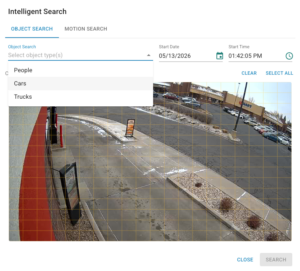
Two Investigative Tools: Motion Search and Object Search
Different zones within a restaurant experience vastly different foot traffic patterns. Intelligent Search provides two distinct tools to match the operational environment of each camera view.
1. Motion Search for Low-Traffic and After-Hours Zones
Motion Search isolates general physical activity within any targeted section of a camera field of view. It is built for spaces where any movement represents an event worth reviewing.
-
Back Door Deliveries: Verify vendor arrival times, confirm proper food handling at the loading threshold, and ensure back doors close securely after staff leave.
-
Overnight Security Checks: Confirm that exterior side doors, patio gates, and dumpster enclosures remained closed during non-operating hours.
-
Stockroom Audits: Isolate visits to dry storage or walk-in coolers during non-prep windows to prevent inventory shrinkage.
-
Hardware Requirement: Available across all camera channels on sites running EnVR Gen 8 and newer appliances.
2. Object Search for Targeted Filtering in Busy Areas
In busy zones with continuous movement, general motion triggers too many events to be helpful. Object Search introduces an extra layer of visual intelligence by filtering specifically for People, Cars, or Trucks.
-
Safe Access Verification: Review exactly who approached the store safe and at what time, filtering out harmless background motion such as shadows, passing headlights, or changing office lighting.
-
Drive-Thru Operations: Filter specifically for “People” to verify staff working outside in the drive-thru lanes while ignoring the constant flow of customer vehicles.
-
Counter and Register Traffic: Jump directly to instances where employees or guests stepped up to service stations, bypassing periods when stations were unoccupied.
-
Hardware Requirement: Available across all camera channels on sites running EnVR Gen 10 and newer appliances.
| Search Capability | Motion Search | Object Search |
| Primary Trigger | General pixel movement | Identified objects: People, Cars, Trucks |
| Ideal Restaurant Zones | Stockrooms, walk-in coolers, back exits | Drive-thru lanes, service counters, safe areas |
| Best Operational Window | After closing, off-peak shift windows | Busy peak service hours and shift changes |
| Hardware Compatibility | Envysion EnVR Gen 8 or newer | Envysion EnVR Gen 10 or newer |
Step-by-Step: Running an Investigation in the Envysion App
The investigation workflow allows store managers and district leaders to pull evidence quickly from any connected desktop or mobile device.
-
Select the Camera: In your camera list, locate the relevant view. Cameras configured for Object Search display an icon in the top right corner of the thumbnail. Click the Play button on your selected view.
-
Open the Tool: Click the Intelligent Search icon located in the bottom right corner of the video window.
-
Choose Your Search Mode: Select either the Motion Search or Object Search tab depending on the area you need to audit.
-
Define Date and Time: Input the specific time window for your investigation.
-
Set the Target Area: Highlight individual grid cells across the video frame, or click Select all. The selected cells do not need to touch or connect, allowing you to highlight both the cash drawer and the office door while ignoring the desk between them.
-
Select Object Types (Object Search Only): Choose one or more targets, such as People, Car, or Truck.
-
Run Search: Click Search to process the request.
Precision Playback Controls and Evidence Sharing
Intelligent Search highlights every detected event in orange along the video timeline. During playback, the system automatically skips gaps in activity and advances directly to the next segment containing matching footage.
To conduct a detailed review, operators have access to fine-tuned playback controls directly within the search window:
-
Variable Playback Speeds: Speed up or slow down playback rates to audit long stretches quickly.
-
Frame-by-Frame Stepping: Advance or reverse frame by frame to confirm bill denominations or exact touchpoints.
-
Quick Replay: Jump back 15 seconds with a single click to re-examine key moments.
-
Full-Screen View: Expand the footage to inspect subtle details across the target zone.
Once the incident is verified, operators can take immediate action without leaving the search screen:
-
Take a Snapshot: Generate a clean image file of a single frame for incident reports.
-
Save a Clip: Store the selected segment directly to your cloud archive for permanent record-keeping.
-
Copy a Link: Create a secure, direct link to share with store leadership, human resources, insurance adjusters, or local authorities.
-
Exit: Click the Exit button in the upper right corner of the screen to return to the live camera view.
Why Restaurant Operators Use Intelligent Video Search
Fast-paced restaurant environments leave little room for administrative delays. Spending hours hunting through surveillance recordings takes critical time away from coaching team members, serving guests, and managing daily floor operations.
By integrating Motion Search and Object Search into daily oversight routines, restaurant leaders protect operational margins, speed up liability resolutions, and maintain clear visibility across every location in their portfolio.
To learn more about Intelligent Video Search, Motion Search, or Object Search, click here.