
Learning how to use intelligent video search enables multi-unit operators and store managers to review hours of security footage in minutes. When cash comes up short, an after-hours delivery requires verification, or a customer dispute arises, Envysion’s Intelligent Search replaces manual video scrubbing with targeted visual filters.
What is the difference between Motion Search and Object Search?
Intelligent Search includes two specialized tools designed for different operational environments across your site.
Motion Search
Motion Search identifies general physical movement within a specific area of a camera view. It is built for spaces where any visual change represents a notable event.
-
Best For: Monitoring stockrooms, walk-in coolers, back exits, and office safe areas during closed hours.
-
Hardware Requirements: Available across all camera channels on sites equipped with an EnVR Gen 8 or newer appliance.
Object Search
Object Search adds visual classification by filtering specifically for People, Cars, or Trucks. It isolates meaningful interactions in areas that experience continuous visual activity.
-
Best For: Auditing cash registers, customer service counters, and drive-thru lanes. For example, in a busy drive-thru lane, you can filter specifically for “People” to verify staff members working outside in the lane while ignoring the continuous flow of customer vehicles.
-
Hardware Requirements: Available across all camera channels on sites equipped with an EnVR Gen 10 or newer appliance.
| Search Feature | Motion Search | Object Search |
| Detection Method | General pixel movement | Object classification: People, Cars, Trucks |
| Primary Location | Low-traffic, secure, or after-hours zones | High-traffic counters, lanes, and dining areas |
| Core Advantage | Catches any unauthorized movement | Filters out vehicles or background movement |
| Hardware Compatibility | EnVR Gen 8 and newer | EnVR Gen 10 and newer |
What are the steps to run an Intelligent Search in the Envysion app?
Follow these seven steps to locate critical footage quickly from any desktop browser or mobile device.
[Camera List] -> [Select Play] -> [Click Search Icon] -> [Set Grid & Filters] -> [Review Orange Events]
1. Select Your Camera
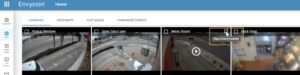
Open your camera list. Cameras enabled for Object Search display a distinctive icon in the top right corner of the video thumbnail. Click the Play button on the camera thumbnail you want to investigate.
2. Open the Search Modal
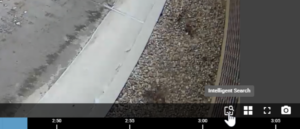
Once the live video stream appears, click the Intelligent Search icon located in the bottom right corner of the screen.
3. Choose Your Search Type
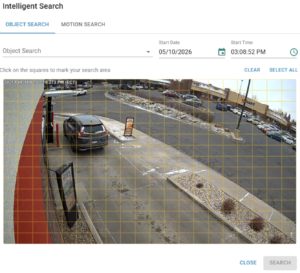
When the modal opens, select either the Motion Search tab or the Object Search tab based on the area and activity you are auditing.
4. Set the Date and Time
Select the calendar date and the exact time range of the footage you need to review. Narrowing the window to the approximate shift time speeds up your search.
5. Define Your Target Grid Area
Select your area of interest on the screen:
-
Highlight individual cells across the video grid to focus on high-priority targets like a cash drawer, safe, or entrance door.
-
Selected cells do not need to touch or connect, allowing you to monitor two separate areas while ignoring the space between them.
-
Click Select all if you want to scan the camera’s entire field of view.
6. Select Object Types (Object Search Only)
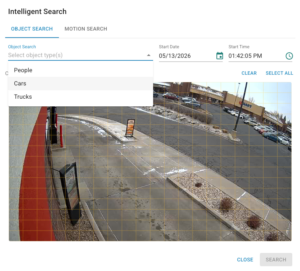
If you are working in the Object Search tab, check the box for each object type you want to isolate: People, Car, or Truck.
7. Run the Search
Click the Search button. The system scans the recorded video and returns matching results on your timeline.
How do you review results with playback controls?
Once your search completes, the timeline displays all matching activity in orange.

The video player automatically skips empty footage gaps and advances directly to the next segment containing confirmed results. This automated playback eliminates the need to fast-forward through hours of inactive video.
Use the built-in player controls to inspect details across the frame:
-
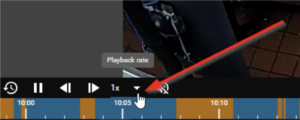
Variable Playback Rate: Adjust the playback speed faster or slower depending on how closely you need to observe the action.
-
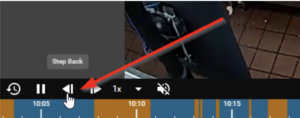
Frame-by-Frame Stepping: Step backward or forward one single frame at a time to verify critical details, such as bill denominations, safe combinations, or product handoffs.
-
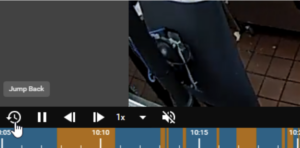
15-Second Quick Replay: Click the jump-back button to replay the preceding 15 seconds instantly.
-
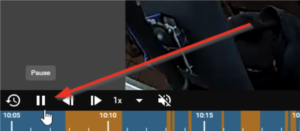
Pause and Resume: Freeze playback at any moment to evaluate customer or staff positioning.
-
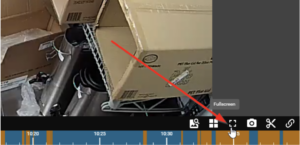
Full-Screen Mode: Expand the video to full screen to inspect subtle movements in low-light areas.
How do you export and share video evidence?
Once you identify the relevant event, you can package the evidence immediately without exiting the search window:
-
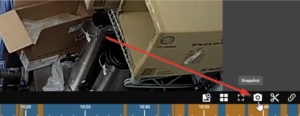
Take a Snapshot: Generate a clean, high-resolution still image of the current frame for immediate inclusion in incident logs.
-
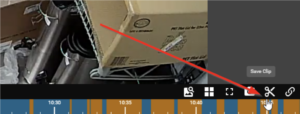
Save a Clip: Save the recorded video segment directly to your secure cloud account for permanent record retention.
-
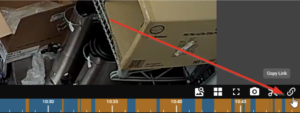
Copy a Link: Generate a direct, authenticated link to share with district managers, human resources, insurance providers, or law enforcement officers.
-
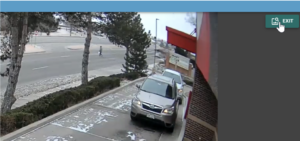
Exit Search: Click the Exit button in the upper right corner of the screen to close the search modal and return to your standard camera views.
What are the best practices for faster store investigations?
-
Separate the Till from the Line: When investigating drawer shortages, highlight only the grid cells covering the cash drawer and the cashier’s hands. This prevents customers walking past the counter from triggering false results.
-
Verify Drive-Thru Speed: Combine Object Search set to “People” with drive-thru cameras to audit whether team members are staging mobile orders outside during peak rush hours.
-
Audit Vendor Delivery Windows: Use Motion Search on back-door cameras between 10:00 PM and 6:00 AM to verify vendor delivery times and ensure back doors latch completely upon exit.
Using Intelligent Search turns daily store surveillance into an active tool for loss prevention, team coaching, and operational consistency across every location in your brand network.
To learn more about Intelligent Search, Motion Search, or Object Search, click here.
Frequently Asked Questions About Intelligent Video Search
What hardware is required to run Object Search?
Object Search requires camera channels connected to an Envysion EnVR Gen 10 appliance or newer. Motion Search is supported on EnVR Gen 8 appliances and newer.
Can I search multiple disconnected areas on the same camera screen?
Yes. When defining your target grid area, you can highlight individual cells anywhere on the screen without connecting them. This allows you to monitor two separate doors or cash drawers while excluding the open space between them.
How does Intelligent Search handle periods with no activity?
Intelligent Search automatically skips footage gaps where no movement or target objects appear. Playback jumps directly from one confirmed orange event to the next, removing the need to manually fast-forward.